Your first hour with DeepSix.
Eight things to try, in this order. Each one sets up the next, and each one ends with something worth seeing.
This page is written for DeepSix 1.1, now on the App Store. Steps marked 1.1 need 1.1 or later, so update the app if you don’t see them.
Paths are for iPhone. On an iPad at full width, most of what’s under More is in Settings in the sidebar, and Diver and AI have their own sidebar items. On a Mac, look in the sidebar, the menus and Settings.
1.Bring in a dive
Your log has its first dive, with its depth profile if it came from a dive computer.
Start with one dive. Either way is quick.
- From your dive computer: in Dives, tap +, then Download from Dive Computer. Make sure the computer is on and in Bluetooth range. On a Mac, choose File › Download from Dive Computer…
- From a paper logbook: in Dives, tap +, then Scan Log Page, and take a photo of the page. DeepSix reads it and shows what it found for you to check before you save. It needs your own Anthropic or OpenAI key, a local AI server that reads images, or 1.1 Apple Intelligence.
- A whole logbook from another app: More › Import & Export takes MacDive, Subsurface and UDDF. Garmin and Suunto files are in More › Settings › Dive Computers. On a Mac, File › Import takes all five.
 Dive computers and GPS →
2.Get your dive sites close
Weather, tides, nearby wrecks and the map all switch on.
Most dives come without GPS, and close is enough. Open the dive, then tap Open Site Page. A site without a location shows This site has no location:
- Set to a place DeepSix found from the site’s name puts it there in one tap. If several places share the name, A different place… lets you pick.
- Choose on map… opens the site so you can drop the pin yourself.
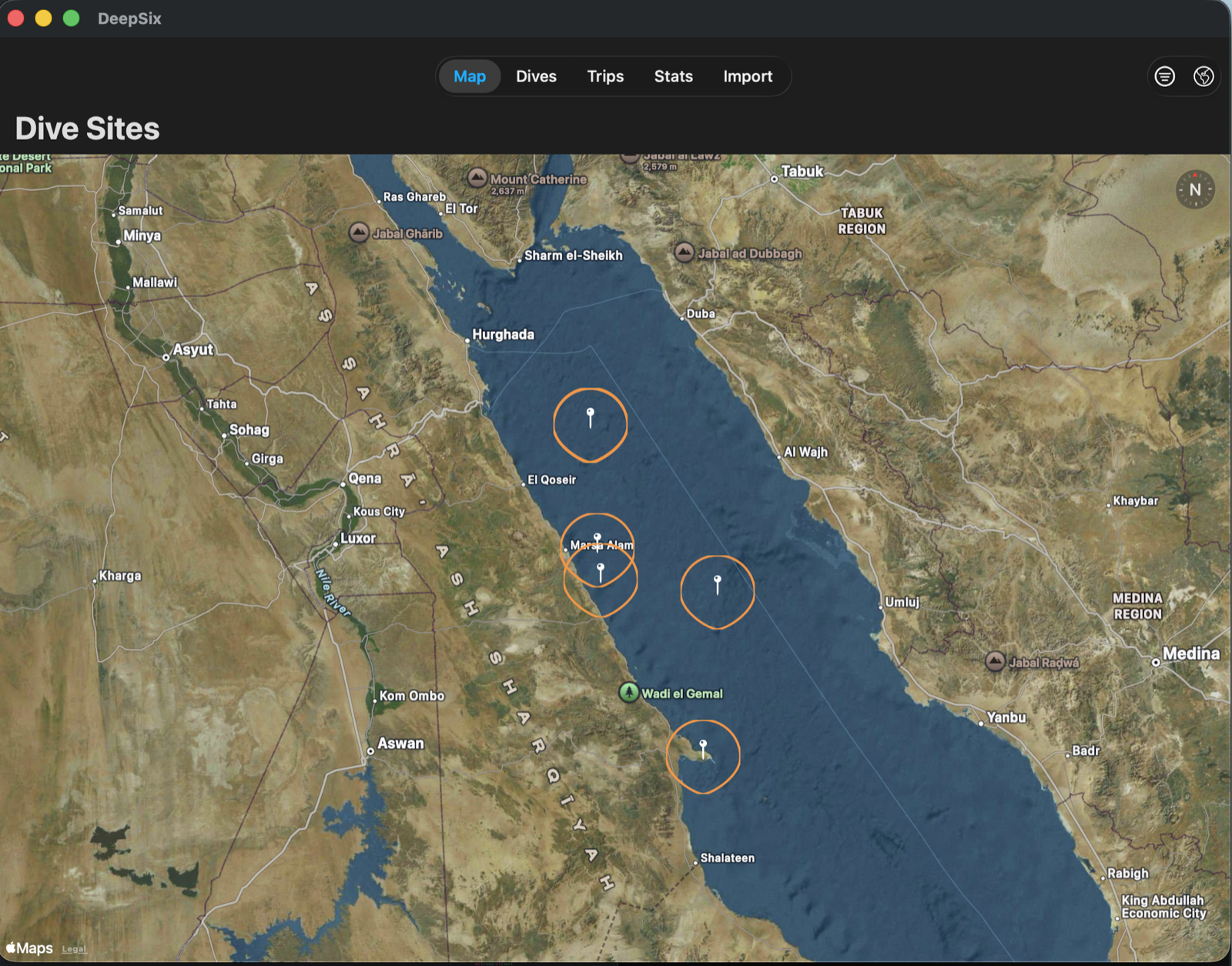 The dive map →
3.Let your photos find their dives
Each photo sits on its dive, at the depth where you took it.
Allow DeepSix to use your photo library. After an import it matches photos to dives on its own, by time.
To match one dive, tap Scan on its Photos card. To match your whole library, use More › Data Tools › Match Photos to Dives.
Site still without a location? Once its photos are matched, 1.1 Use position from photos on the site page places it where those photos were taken, if they carry GPS.
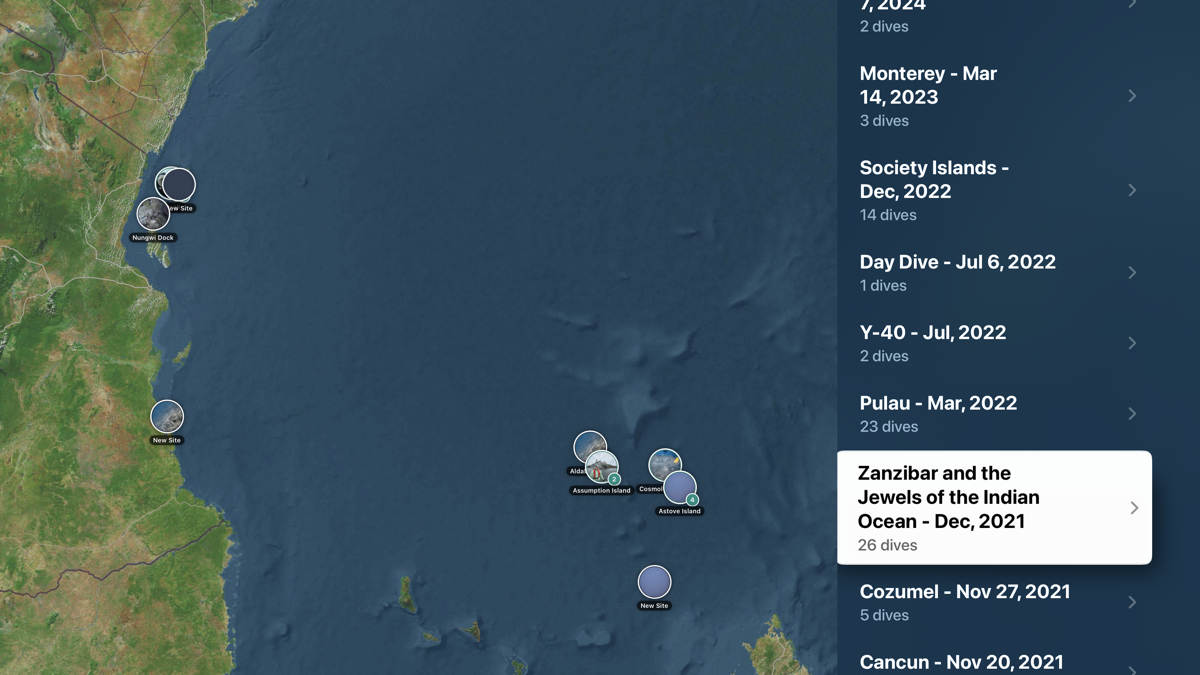 Photos and memories →
4.Bring back the color
The reds come back, on the device, and the original is kept.
Tap a photo, then Correct Colors. DeepSix uses the depth of that photo, so a shot at 20 meters gets more help than one at 5. Adjust the preview, then Apply to Photo or Apply to Dive. You can revert at any time.
To correct a whole dive, tap Colors on its Photos card.
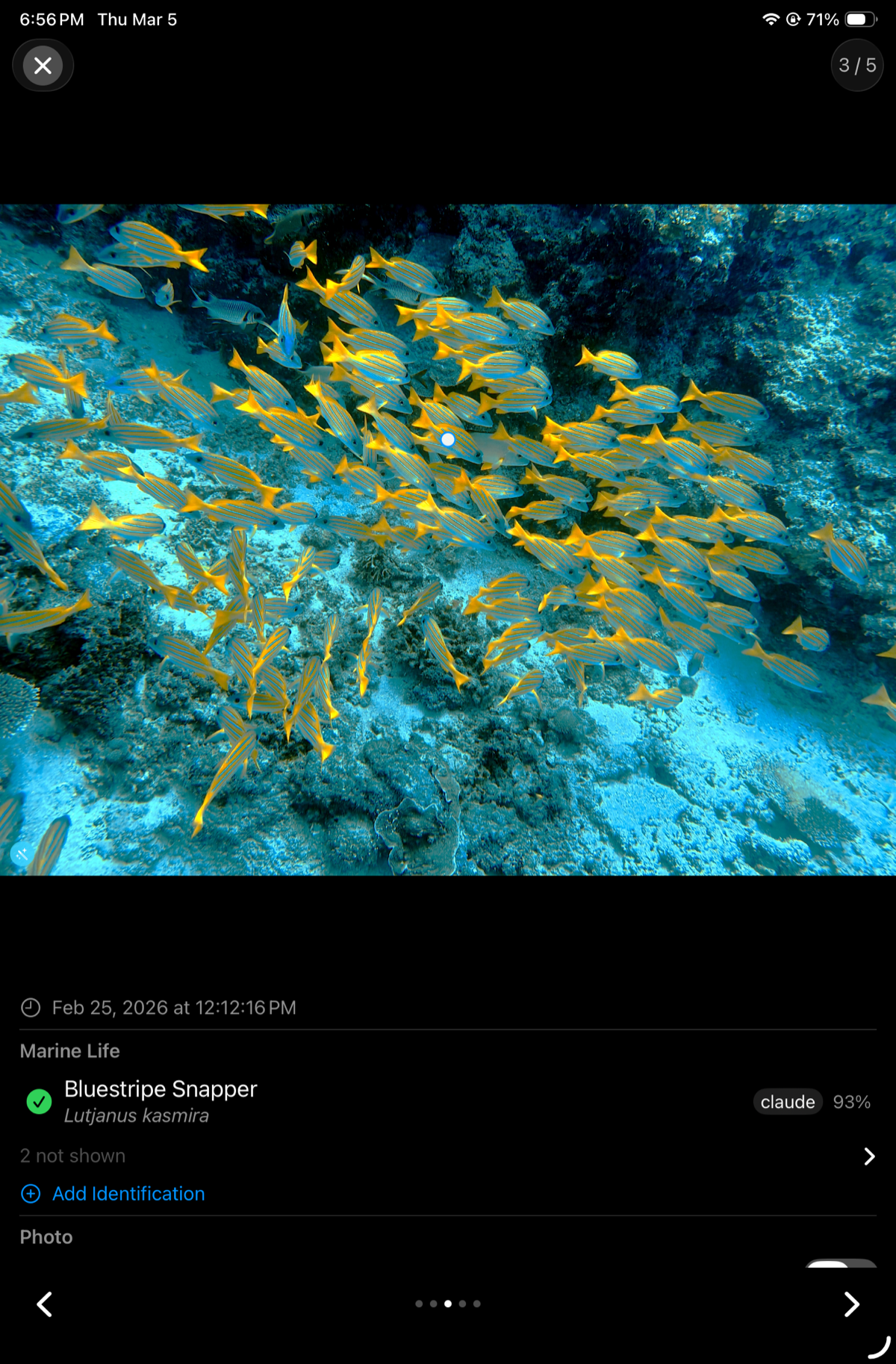 Color correction →
5.Name what you saw
Your photos get species names, for free and offline.
1.1 Download the free on-device model once (about 65 MB): open a photo and tap Download On-Device Species ID.
Then tap a photo, Identify or add a species, then Identify Species on This Device. For a whole dive, tap Identify Critters on the Photos card.
No photo? The Reef Fish Finder names a reef fish from what you remember.
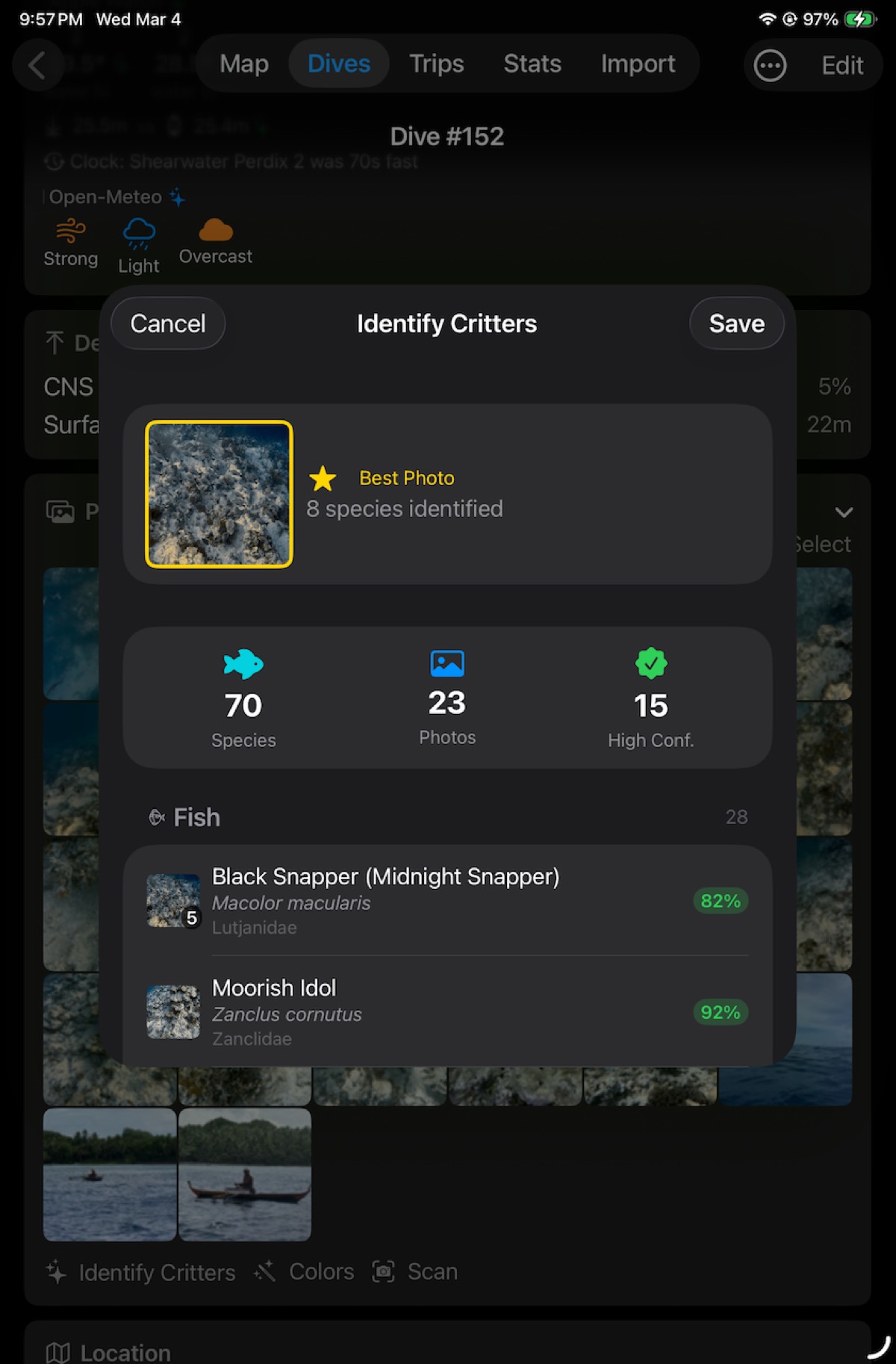 Critter ID →
6.Count your flags
A flag for every country you’ve dived, and achievements dated from your own dives.
Open Stats. The Geography card shows your country flags, and your states and special regions. Dived a wreck that flew a flag? Wreck Flags shows its ensign.
For achievements, open More › Diver. Each one carries the date of the dive that earned it.
Achievements and flags →7.Sit back with Apple TV
Your trips on a globe, and your photos on the big screen.
Install DeepSix on Apple TV with the same iCloud account. Your dives arrive on their own.
DeepSix picks your best photos for the TV by itself. To send them all now, tap Prepare for Apple TV in More › Settings › General › Photos on your iPhone.
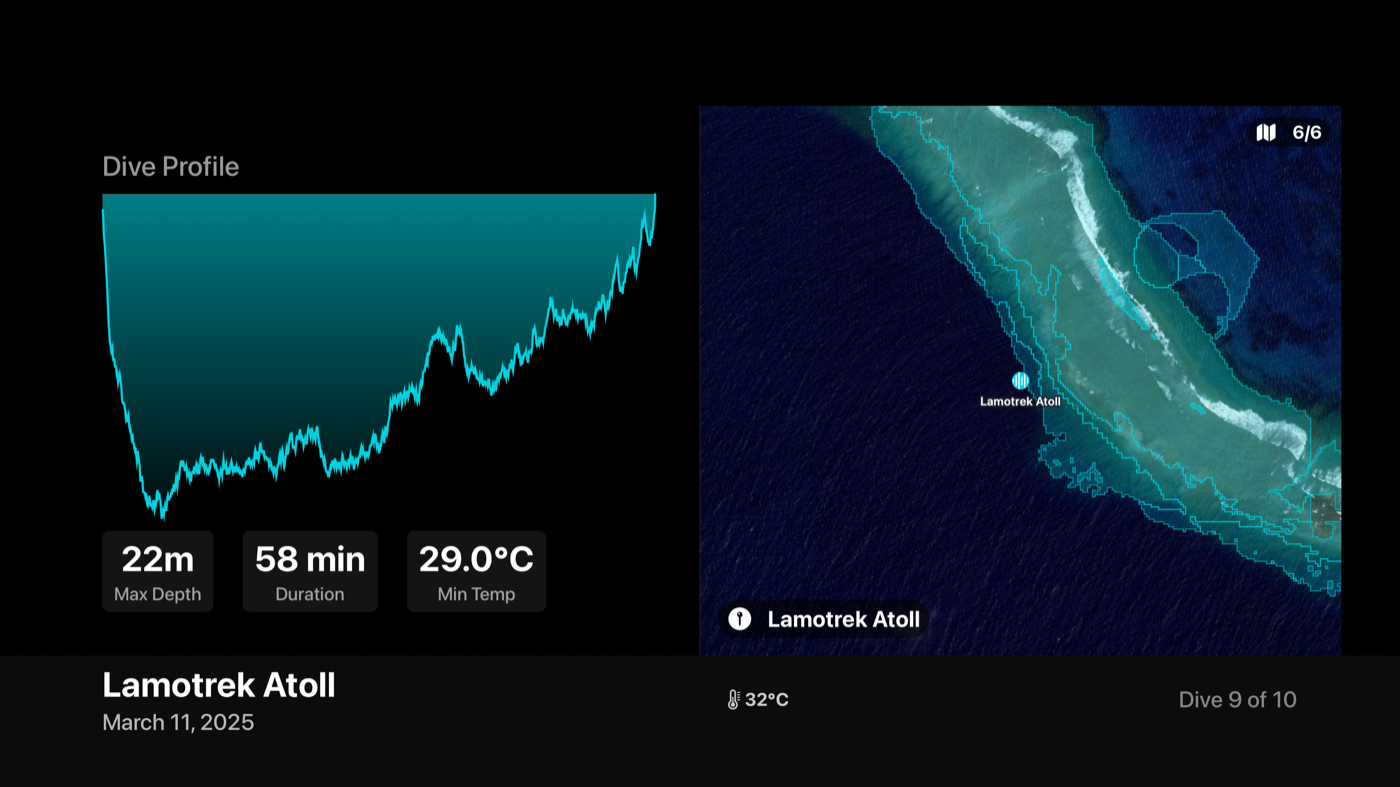 DeepSix on Apple TV →
8.Plan your next trip
A trip with its dive sites on the map, and a week of tides and weather for each.
In Trips, tap +, then Plan a Trip. Paste the booking text or a link, or add a screenshot or a PDF. Tap Parse Trip →, check what DeepSix found, then Create Trip →.
On each site page, tap Get 7-day forecast for tides, slack water and weather. Plan a Trip needs your own Anthropic or OpenAI key, a local AI server, or 1.1 Apple Intelligence. A screenshot needs one that reads images.
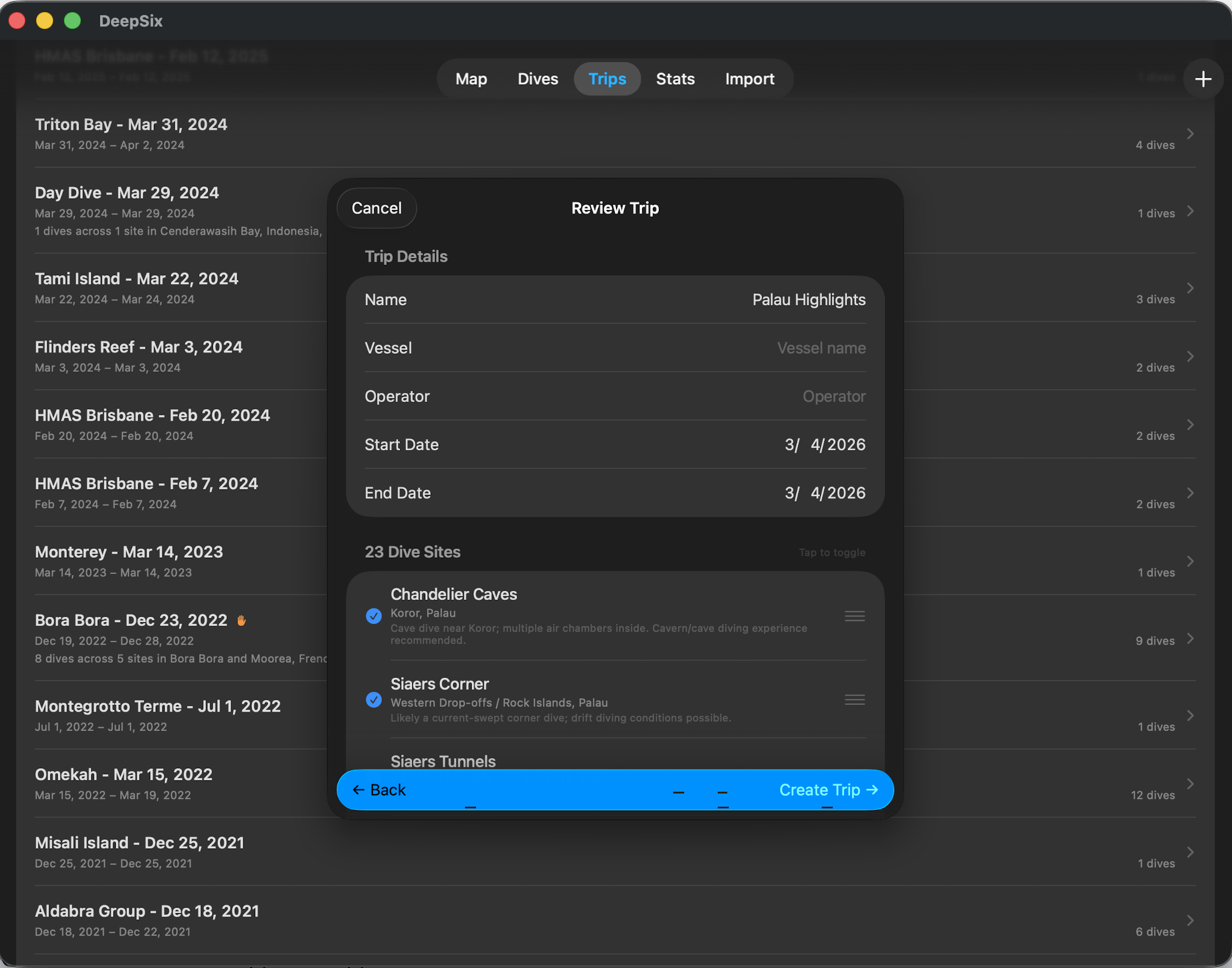 Trip planner →
Before your next dive
Your next dives arrive with their positions.
On a dive day, keep your iPhone on the boat and tap Start GPS Tracking: in Dives › +, or in More › GPS Dive Tracking. DeepSix records where the phone goes and places the dives you download or import from that day.
The DeepSix app on Apple Watch Ultra adds where you went in and where you came out. The dive profile comes from Apple’s Depth app or another dive app on the watch, and DeepSix reads it from Health. Shearwater computers paired with a Swift transmitter that has GPS record those positions too, and DeepSix reads them.
GPS from your dives →DeepSix is translated by divers, not machines. Speak French, Spanish, Japanese or Chinese? We’re looking for you.
Stuck? Ask the chat at the bottom of this page, write to [email protected], or join us on Discord.